The right receipt. The right destination.
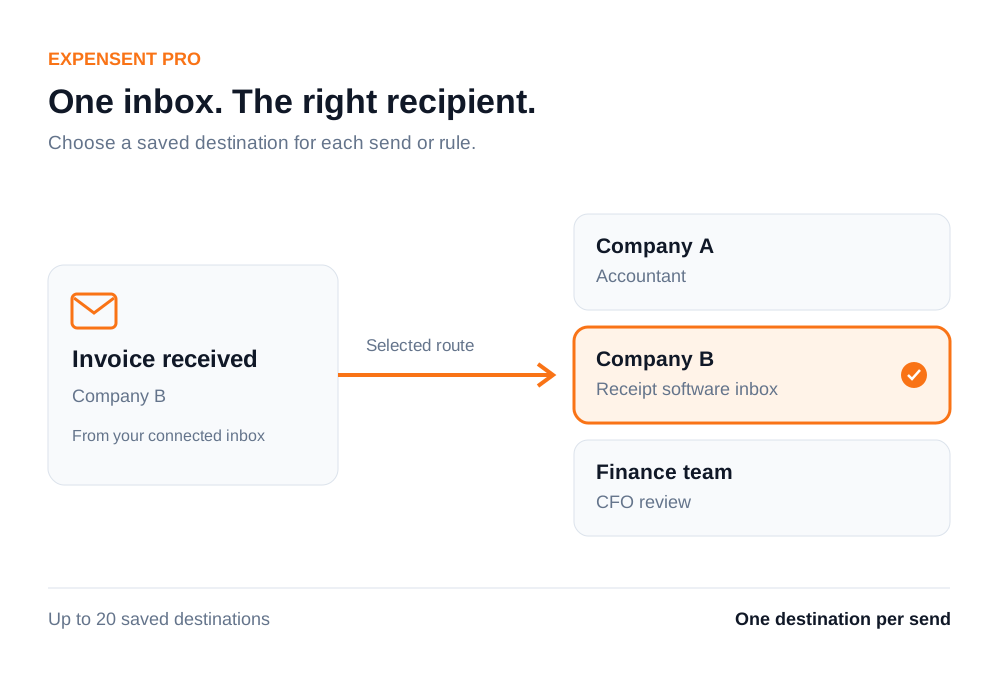
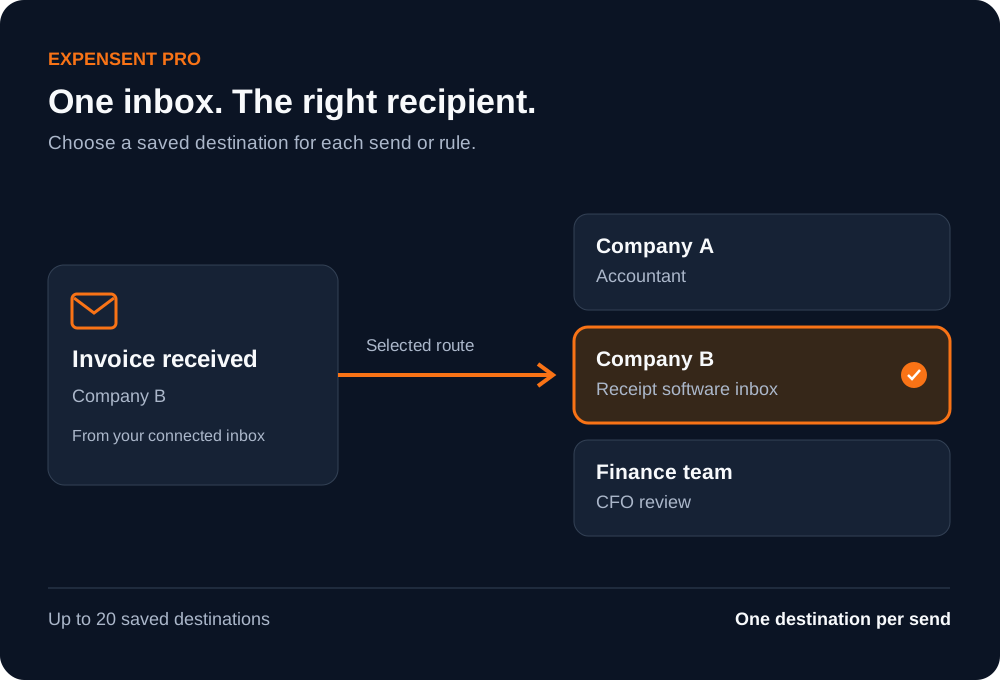
One inbox can receive invoices for several companies. With Expensent Pro, save their accountants, software addresses, or team inboxes and choose where each document goes. Approved rules keep recurring invoices moving to the right destination.
How it works
Save the addresses you need
Start with one default destination during onboarding. In Settings, add a name and email address for each company, accountant, software inbox, or team.
Choose where to send
The destination appears beside Forward. Select an address before sending. Any matching emails you include in that action go to the same destination.
Automate recurring handoffs
Assign a destination to a rule for a recurring sender and subject pattern. Future matching emails follow that rule without another manual forward.
Route documents around your business
Several companies, one inbox
Send one company's invoices to its accountant and another company's receipts to a different software inbox, even when both arrive in the same connected inbox.
Different teams and responsibilities
Route an invoice to accounting, a financial document to legal, or a receipt to a CFO inbox. Each send has one selected destination; CC remains a separate choice.
Choose across your workflow
Use saved destinations when forwarding email, uploading a receipt, resending a document, or sending files added to a reminder.
Clear recurring rules
Use distinct sender and subject patterns for different routes. When two companies' emails look identical, choose the destination manually instead of creating an ambiguous rule.
Guides & integrations
Keep exploring
Auto-Forwarding Rules
Turn a recurring receipt into a one-click rule, so the next one forwards itself.
Action Center
Your invoice to-do list — review and forward to your accounting software from one queue.
Connected Inboxes
Link Gmail, Outlook, iCloud, and IMAP inboxes, then work likely receipts from one place.
Common questions
Which plan includes multiple destinations?
Pro includes up to 20 saved destinations, including the default address. Existing Pro subscribers have access without changing plans. Solo includes one default destination.
Can one email be sent to every saved destination?
Each forwarding action or automatic rule selects one destination. A matching-email batch sends all included emails to that destination. Use the separate CC options when someone needs a copy.
Does Expensent automatically identify which company owns an invoice?
Destination routing follows your selection or a rule you configure. Rules match sender and subject patterns. If those cannot distinguish the companies, choose the destination manually.
What happens if I move from Pro to Solo?
Your saved addresses are kept, but additional destinations require Pro. Future automatic matches that need an additional destination wait in Action Center. You can choose the default destination or return to Pro; emails are never silently redirected.
Give every company its own destination
Choose Pro to save the accountants, software inboxes, and teams you send documents to. Already on Pro? Add your destinations in Settings.