Email invoice guide
How to Find Invoices and Receipts in Your Email
Find one invoice with Gmail or Outlook search, or use Expensent to find current and historical invoice emails, see what needs action, and send usable documents to accounting.
By ilios Galil · Founder, Expensent
Published April 22, 2026 · Updated August 30, 2026
Read this if…
You know invoices and receipts are sitting in email, but you do not want bookkeeping completeness to depend on another monthly mailbox search.
TL;DR
For one known invoice, search Gmail or Outlook by vendor, subject, attachment, and date.
For a full month or quarter, Expensent finds invoice and receipt emails across the connected inbox and groups them by next action.
Send usable documents to your accountant or accounting destination, then create rules from recurring patterns you approve.
In This Guide
The fastest way to find an invoice in your email
If you know the vendor or approximate date, start with your email provider's search. Combine the vendor name with terms such as invoice, receipt, or bill, then narrow by date and attachments.
If you need a complete month or quarter, work across several vendors, or repeat the same search before every close, connect the inbox to Expensent. It finds financial-document emails across the selected period and groups each result by what needs to happen next.
One known invoice
Search manually by vendor, subject, date, or attachment when you know what you are looking for.
A month or quarter
Use Find Invoices to review the period without building a separate search for every vendor.
Recurring documents
Create a rule from a receipt pattern you have already approved so the next one follows the same route.
How to search Gmail or Outlook for invoices manually
Run a few focused searches instead of relying on one broad keyword. Search archived mail as well as the inbox, and repeat the search with receipt and bill when invoice returns too little.
Gmail search examples
invoice OR receipt OR billhas:attachment filename:pdfafter:YYYY/MM/DD before:YYYY/MM/DDfrom:vendor@example.com
Outlook search examples
invoice OR receipt OR billHasAttachment:yesSubject:invoiceReceived:01/01/2026..03/31/2026
Combine operators with a vendor name or accounting period. A narrow search is easier to review, but it is only as complete as the terms and mailbox scope you choose.
What a mailbox search can miss
Email search is useful for a document you can describe. It is less reliable as a completeness check because the query has to predict how each vendor wrote and packaged the message.
- A receipt may say payment, renewal, order, statement, or confirmation instead of invoice.
- The document may be contained in the email body rather than attached as a PDF.
- A vendor portal notice may look relevant but still require you to download the source document.
- The same accounting period may be spread across work, personal, and shared inboxes.
- Search results do not show whether a document was already sent to accounting or still needs attention.
That is the gap Expensent is built to close: finding likely financial documents first, then giving each one a visible next action instead of leaving the result in another search tab.
How Expensent finds invoice emails
Connect the inbox where receipts already arrive. Expensent checks new mail after connection, while Find Invoices searches the older month or quarter you choose. Historical search can reach up to 10 years back, one period at a time.
Results are organized in the Action Center by the next step. Clean documents can be ready to forward, portal notices stay visible in Download Required, and uncertain messages remain in Needs Review.
Connect the inbox
Choose the mailbox where invoices and receipts already arrive.
Search the period you need
Run Find Invoices for a month or quarter to catch up on older mail.
Review the next action
See what is ready to send, needs a portal download, or needs review.
Route it and handle repeats
Forward a document now or create a rule from an approved recurring pattern.
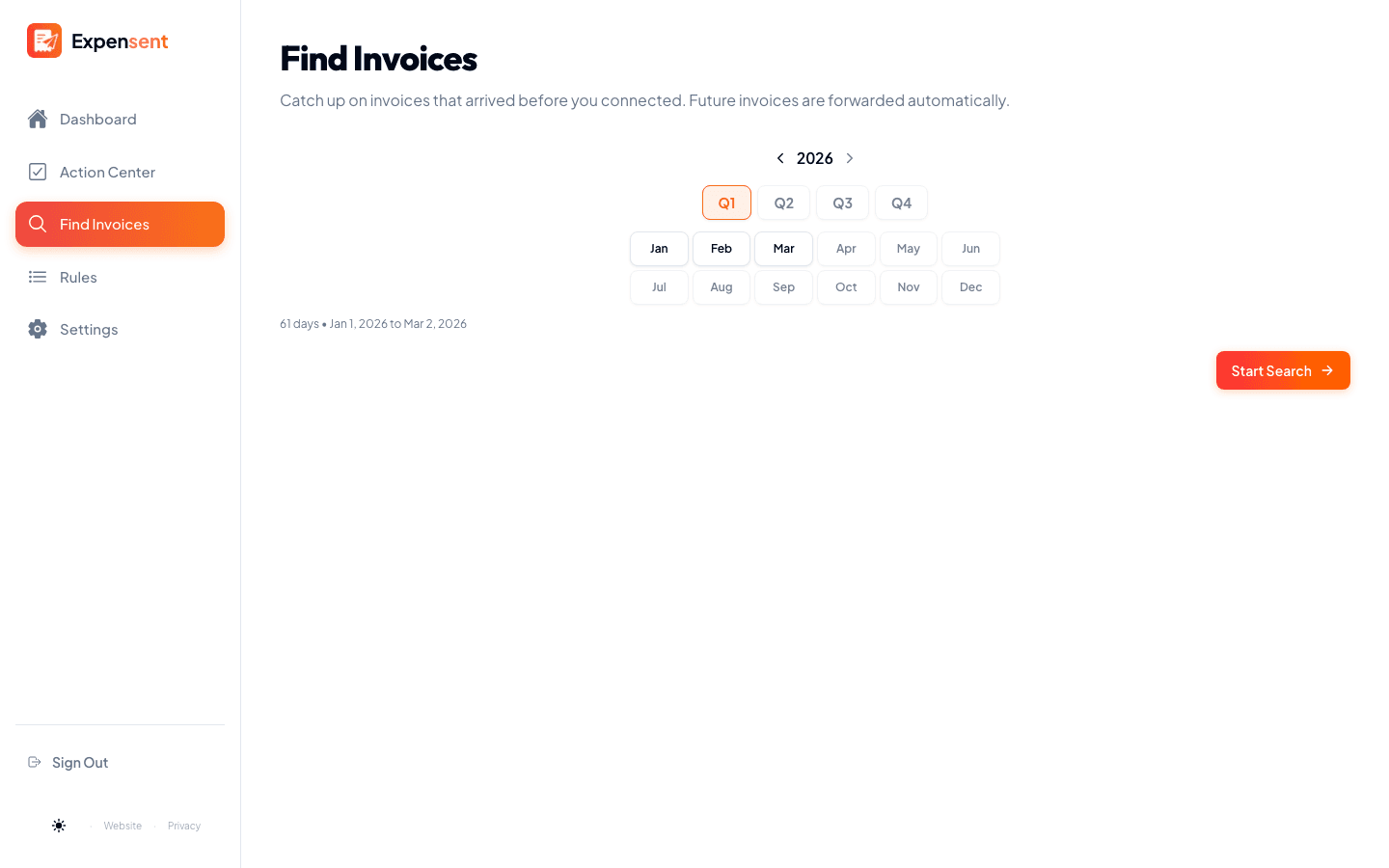
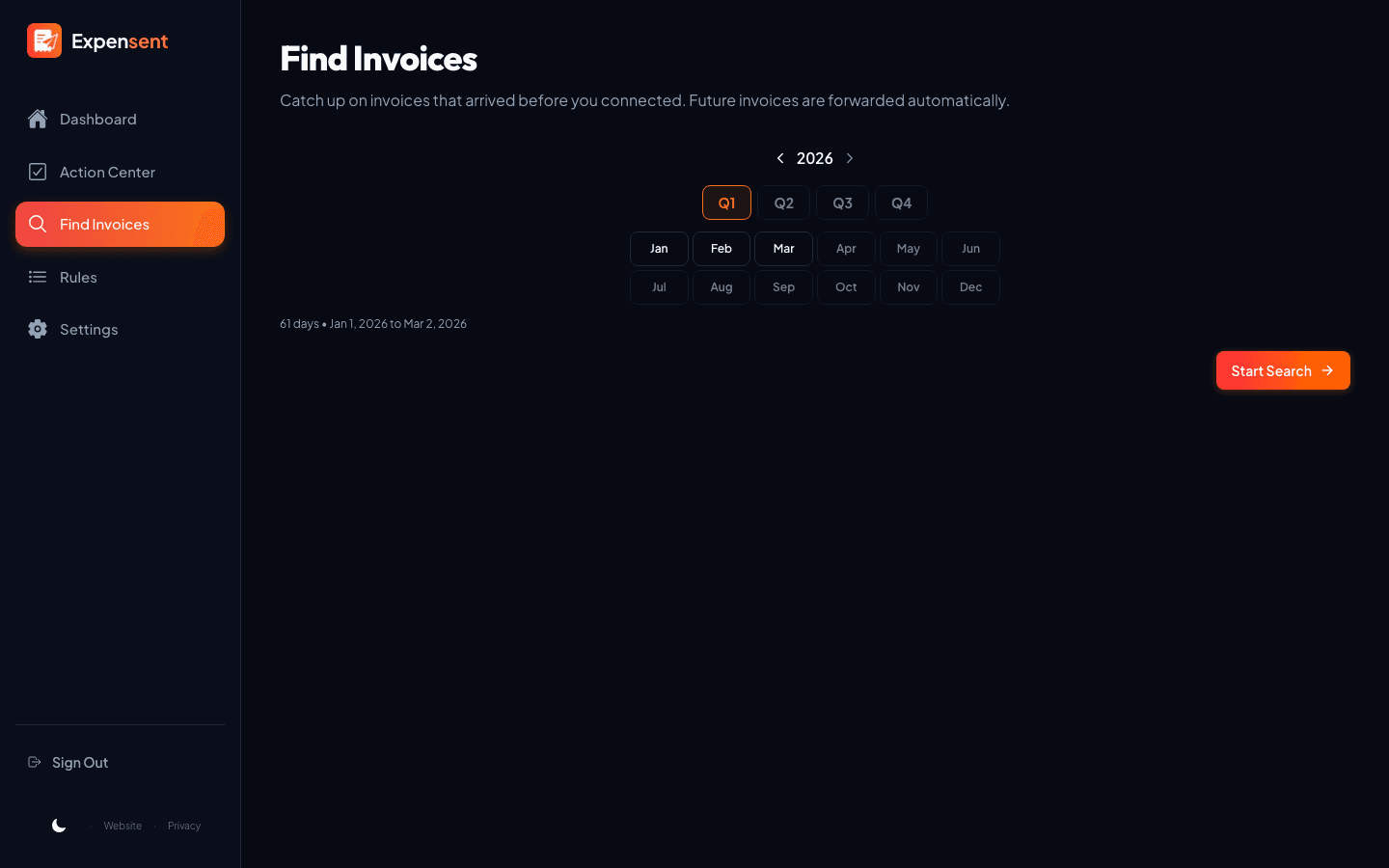
Find Invoices searches the selected inbox and period, then brings the results into the Action Center workflow.
Route the invoice now, then handle the next one
When a document is ready, forward it to the destination you configured, such as your accountant or an accounting-platform receipt address. Preview the email and supported attachments before it leaves the connected mailbox.
For a recurring invoice, create a rule from the message you already approved. The rule keeps the proven sender and subject pattern, destination, note, attachment choices, and CC setting together for future messages.
One-time forwarding
Use it for a valid invoice that needs to reach accounting now, without creating a recurring pattern.
Approved recurring rules
Use a successful receipt email as the starting point, then let future messages with that pattern follow the saved route.
How Expensent analyzes a connected inbox
Expensent starts with message details such as sender, subject, date, and attachment names. Only likely financial-document candidates have their email body or supported attachments analyzed more closely.
Email bodies and inbox attachments are processed during analysis and are not stored afterward or used to train AI models. Expensent keeps the document details required for the review, routing, and duplicate-prevention workflow.
Frequently asked questions
How do I find invoices in Gmail?
Start with invoice, receipt, or bill, then narrow the results with Gmail operators such as from:, has:attachment, filename:pdf, after:, and before:. Search All Mail if invoices may have been archived. Run more than one search because a valid financial document may use a different subject or have no PDF attachment.
How do I find invoices in Outlook?
Search for invoice, receipt, or bill, then use Outlook filters for sender, subject, attachments, folder, and date range. Advanced Query Search supports terms such as Subject:, HasAttachment:yes, and Received:. Widen the search beyond the current folder when older messages may be archived elsewhere.
Can Expensent find invoices from before I connected it?
Yes. Find Invoices can search up to 10 years of mailbox history, one month or quarter at a time. Historical results join the same Action Center workflow as newer invoice emails.
Does Expensent find new invoice emails too?
Yes. After an inbox is connected, new invoice and receipt candidates can appear in the Action Center as they arrive. Find Invoices is the separate catch-up step for messages that arrived before connection or during a disconnected period.
What if an invoice does not have a PDF attachment?
Some receipts are contained in the email body, and some messages only link to a vendor portal. Expensent can analyze complete email-body receipts when that option is enabled and places portal-only messages in Download Required so the missing file stays visible.
Does Expensent replace accounting software?
No. Expensent finds invoice and receipt emails, helps route usable documents, and automates approved recurring patterns. Your accountant or accounting platform still handles categorization, matching, filing, approvals, reporting, and final decisions.
Does Expensent read every email in full?
No. Expensent starts with message details such as sender, subject, date, and attachment names. Only likely financial-document candidates have their body or supported attachments analyzed. Email bodies and inbox attachments are not retained after analysis or used to train AI models.